Accounts
Navigate to Users & Domains, select a domain, and open a user account to access its configuration sections.
| Section | Description |
|---|---|
| Info | Display general user information, including name, avatar settings, account type, and assigned plan. |
| Card | Configure contact details such as name, position, birth date, phone numbers, email addresses, and physical addresses. |
| Configure forwarding, responder, and spam handling settings. | |
| Limits | Define account limits such as disk quota, expiration, and maximum message size. |
| Rules | Create and manage message processing rules for the account. |
| Mobile Devices | View and manage devices synchronized with the account. |
Info
Displays a general overview of the account, including personal details, permissions and rights, quotas, two-factor authentication status, and client applications.
You can change the Account type to grant additional permissions to the user.
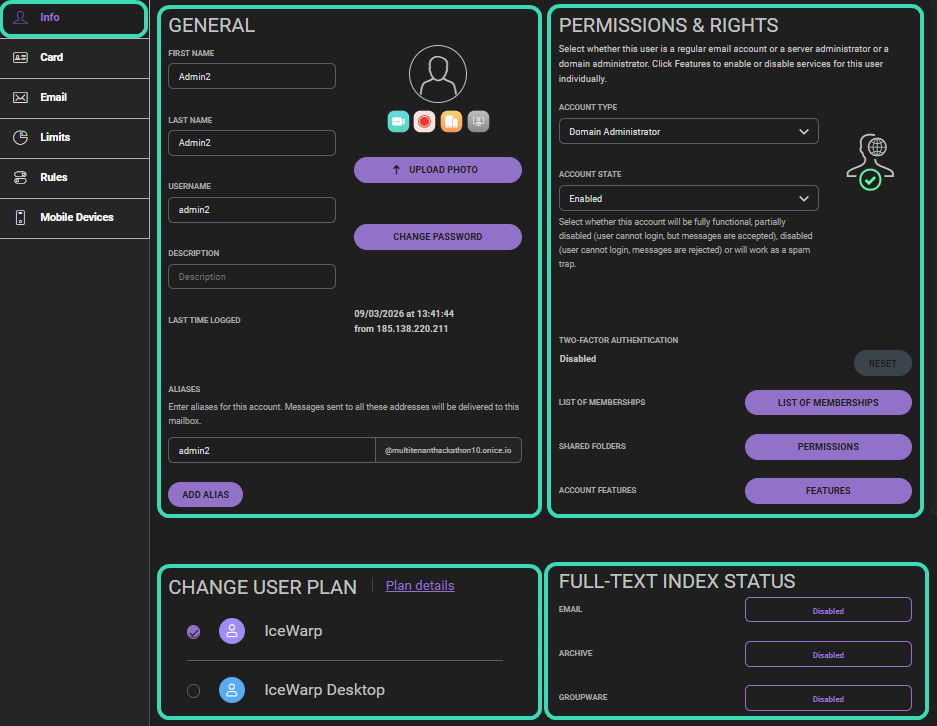
General (left panel)
Displays basic account information and management options. You can edit user details, manage aliases, change the password, and update account settings.
Permissions & Rights (right panel)
Defines the administrative role and operational status of the account.
Account type determines available administration features:
- User – Manages only their own account.
- Domain administrator – Manages the domain and its users.
- Web administrator – Manages the server and its domains.
- System administrator – Full access to all servers, domains, and WebAdmin.
Account state defines whether the account is active:
- Enabled – Fully functional.
- Disabled (login) – Login disabled, messages accepted.
- Disabled (login, receive) – Login disabled, messages rejected.
- Spam trap – Used for spam detection.
Change user plan (bottom-left)
Assign a subscription plan to the account. The selected plan determines available services and features. Click Plan details to view its configuration.
Additional options (right panel)
- List of memberships – View groups or mailing lists.
- Permissions – Configure folder sharing.
- Features – Enable or disable services for the account.
Full-text index status (bottom-right)
Displays the indexing status of the user's data (Email, Archive, GroupWare). This helps verify whether full-text search is available and up to date.
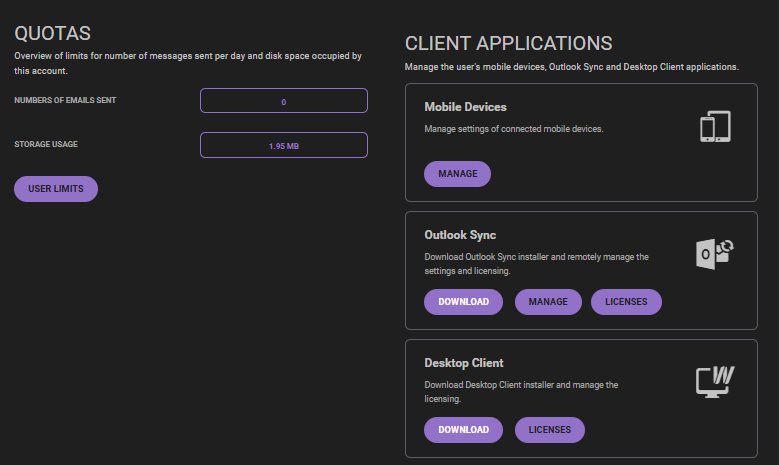
Quotas
Displays usage information and limits for the account. You can view the number of sent messages and current storage usage. Click User limits to configure account limits such as disk quota or sending restrictions.
Client Applications
Manage applications connected to the user's account.
- Mobile Devices – Manage settings for devices connected through synchronization.
- Outlook Sync – Download the Outlook Sync installer and manage synchronization settings and licenses.
- Desktop Client – Download the IceWarp Desktop Client and manage its licensing.
Card
Use this section to manage the user's contact profile. The information entered here is stored in the Global Address List (GAL) and is visible in the user's contact details in WebClient.
You can edit personal details, company information, phone numbers, email addresses, websites, notes, and work or home addresses. All fields are optional.
These fields can also be filled in the WebClient interface. (See My Details)
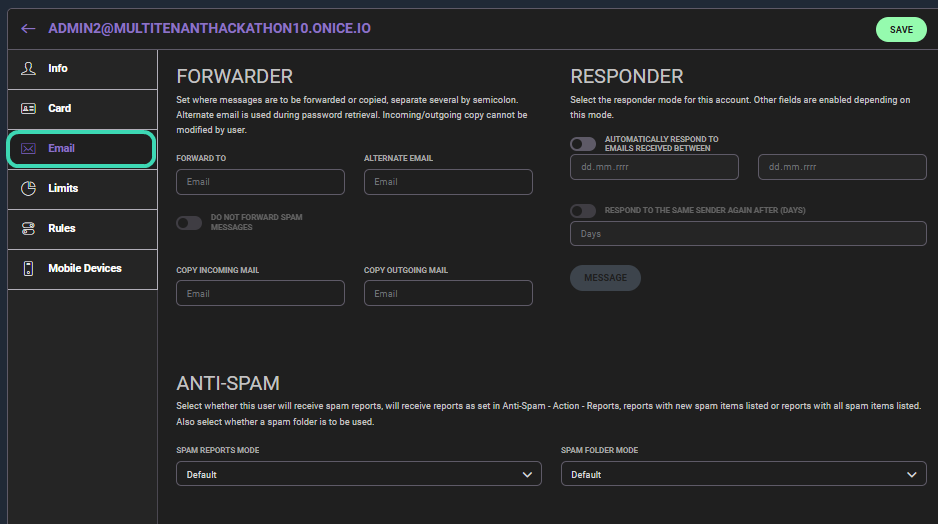
Use this section to configure how the account handles incoming messages. You can set message forwarding, configure an automatic responder, and manage spam report and spam folder settings.
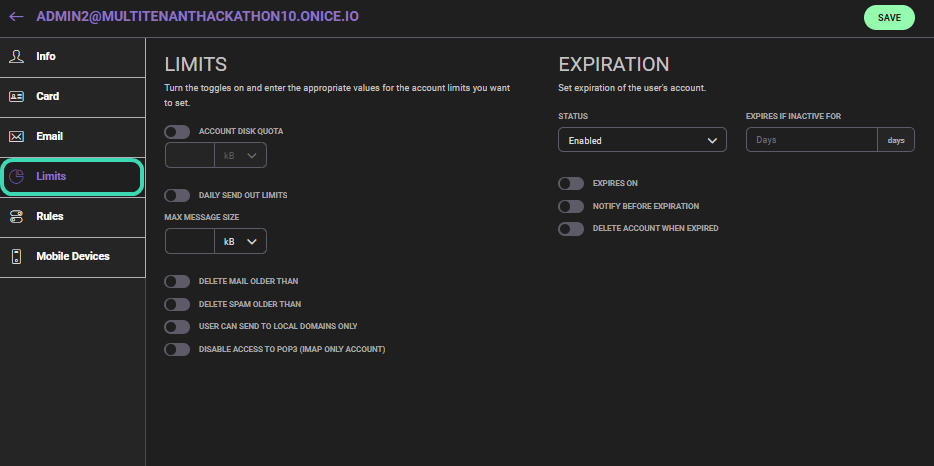
Limits
Use this section to control account restrictions and expiration settings. You can define limits such as mailbox size, sending limits, message size, and retention rules, as well as configure when the account expires.
Rules
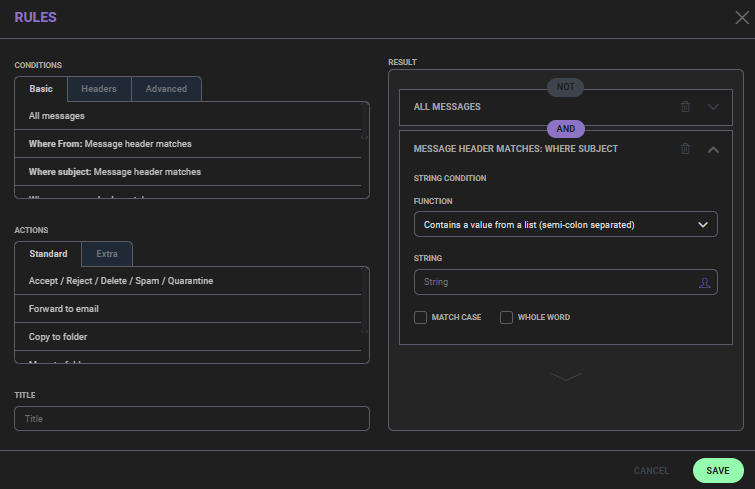
Use this section to create and manage rules for incoming messages. Rules allow you to define conditions (such as sender or subject) and apply actions like moving, forwarding, or deleting emails automatically.
Mobile Devices
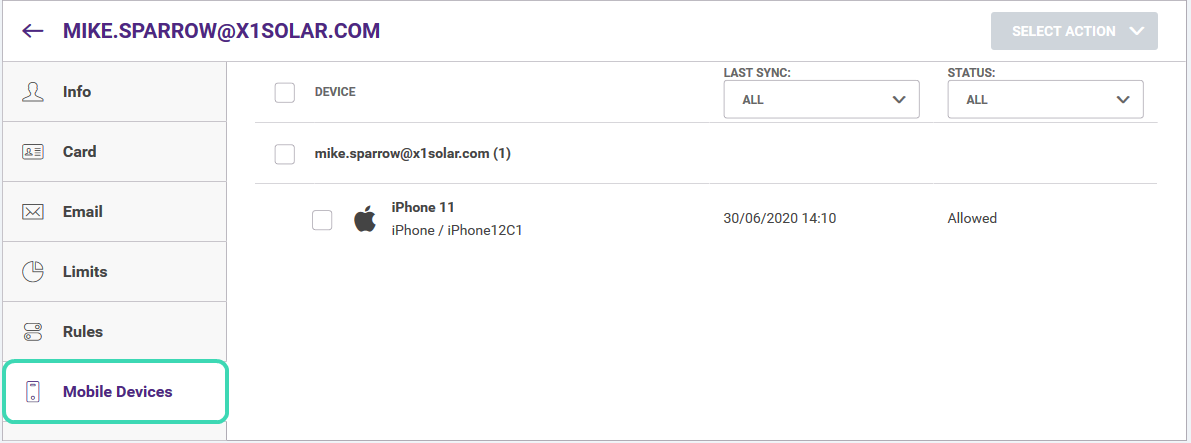
Use this section to view and manage mobile devices connected to the account. You can monitor synchronization status, review device activity, and allow or restrict access. For more information, see Mobile Devices Set-up.
Next steps
Explore related sections:
← Back to WebAdmin portal

